Awareness Materials
Workplace Injury Hotline Promotional Materials

Just Added: Digital Image Quick Reference Guide!
The MCIT provided workplace injury hotline powered by TriageNow is for all work-related injuries. The hotline is a simple and effective way to improve outcomes for employees who are hurt on the job. It also serves to begin the workers’ compensation claim process.
Use the below items to educate supervisors and employees about the hotline, its benefits, and how and when to use it.
Use the video to introduce staff to hotline, and to show then how and when to use it. Consider viewing the video during a staff meeting, during employee onboarding, posting to the intranet or emailing a link to staff.
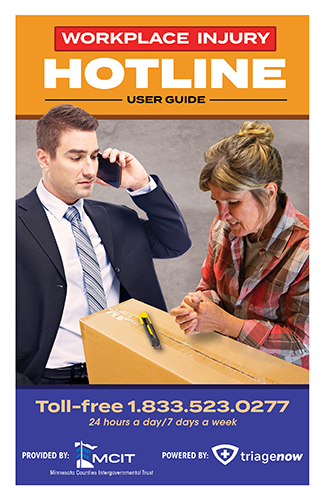
Provide a guide to all supervisors. Consider posting the PDF to the intranet where all employees can access it.
MCIT members can request to have printed workplace injury hotline promotional materials sent to them.
Specify quantity and shipping address (no P.O. boxes) in the request.
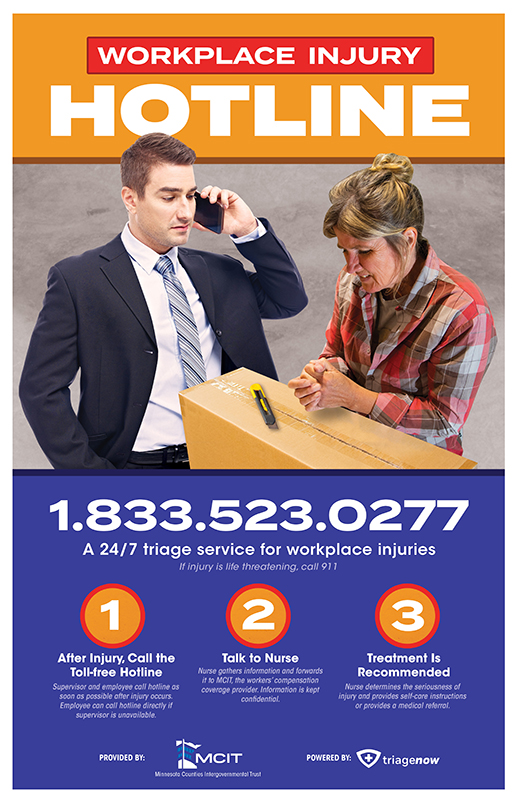
Place posters near workstations and high-traffic areas around the office, such as next to coffee pots, water stations and refrigerators.
MCIT members can request to have printed workplace injury hotline promotional materials sent to them.
Specify quantity and shipping address (no P.O. boxes) in the request.
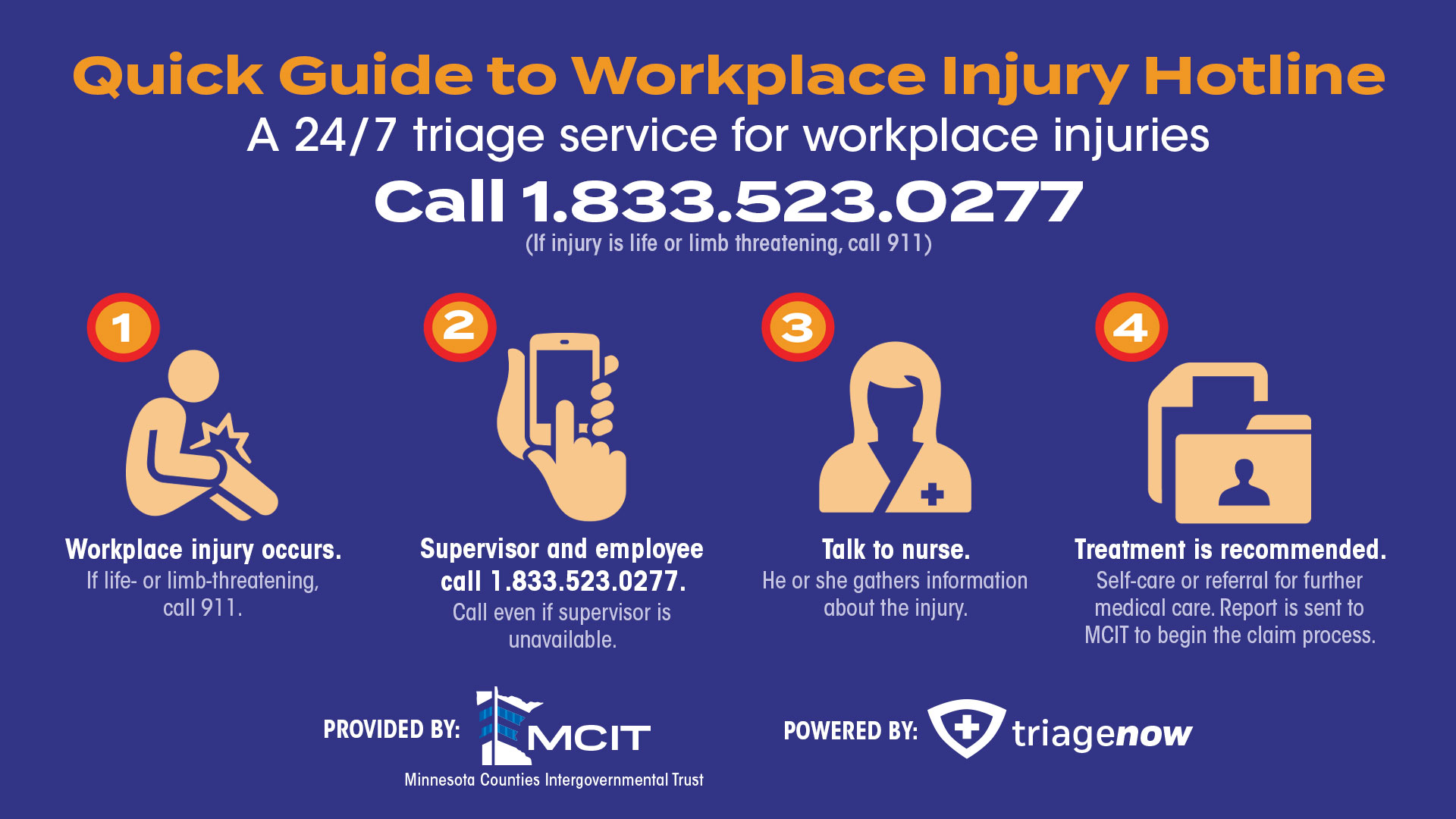
Tip: After clicking on link to image, right click on image. Then choose “save image as” to save the image to your system.
Employers can use the digital image to promote the no-cost workplace injury hotline to department heads, managers and employees for work-related injuries.
Ways to Use the Digital Image
The workplace injury hotline digital image can be used anywhere you can use a jpeg file. Here are a few ideas on how to use it to promote the service::
- Paste the image into a new email message and send to staff
- Project the image during a team meeting and take a few moments to remind staff about this service
- Print it and distribute to employees as a quick reference guide for the hotline
How to Share Videos
The animated videos available to MCIT members as part of MCIT’s loss control and risk management services can be shared with member employees in two ways. See instructions below.
You need to capture the embed code for each video to stream them on your intranet site. Work with your intranet manager to place the embed code.
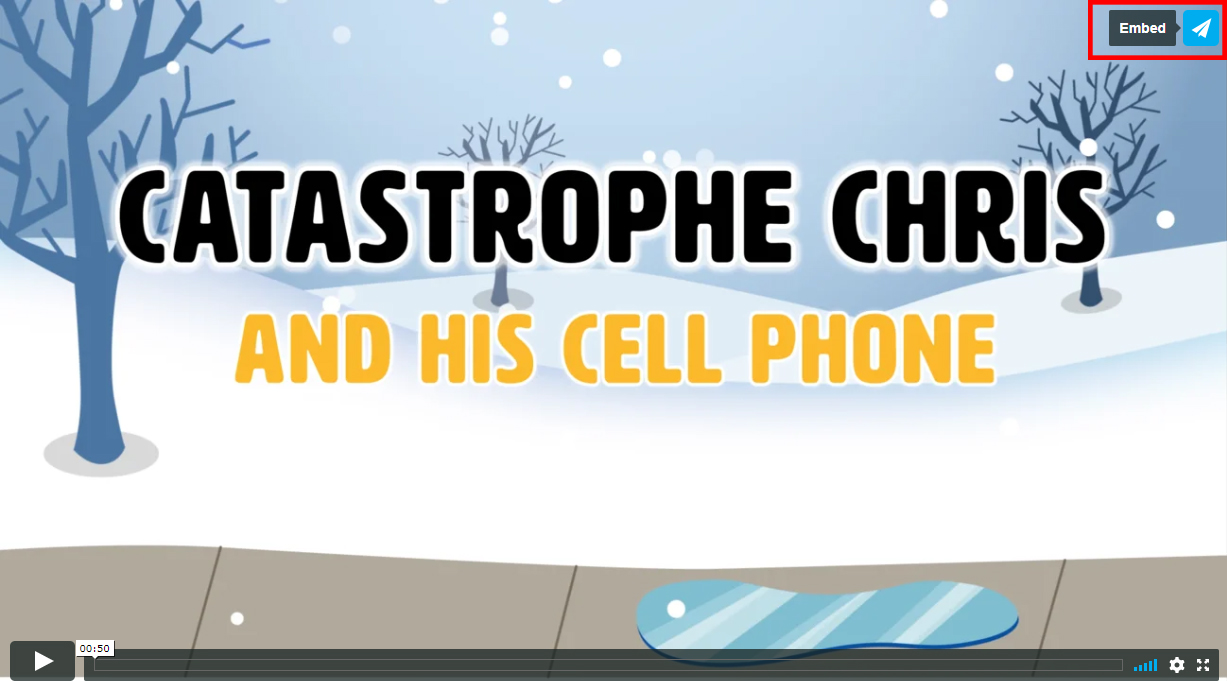
- Locate the video you want to add to your intranet site . Click on the paper airplane icon in the upper right corner of the video (see above).
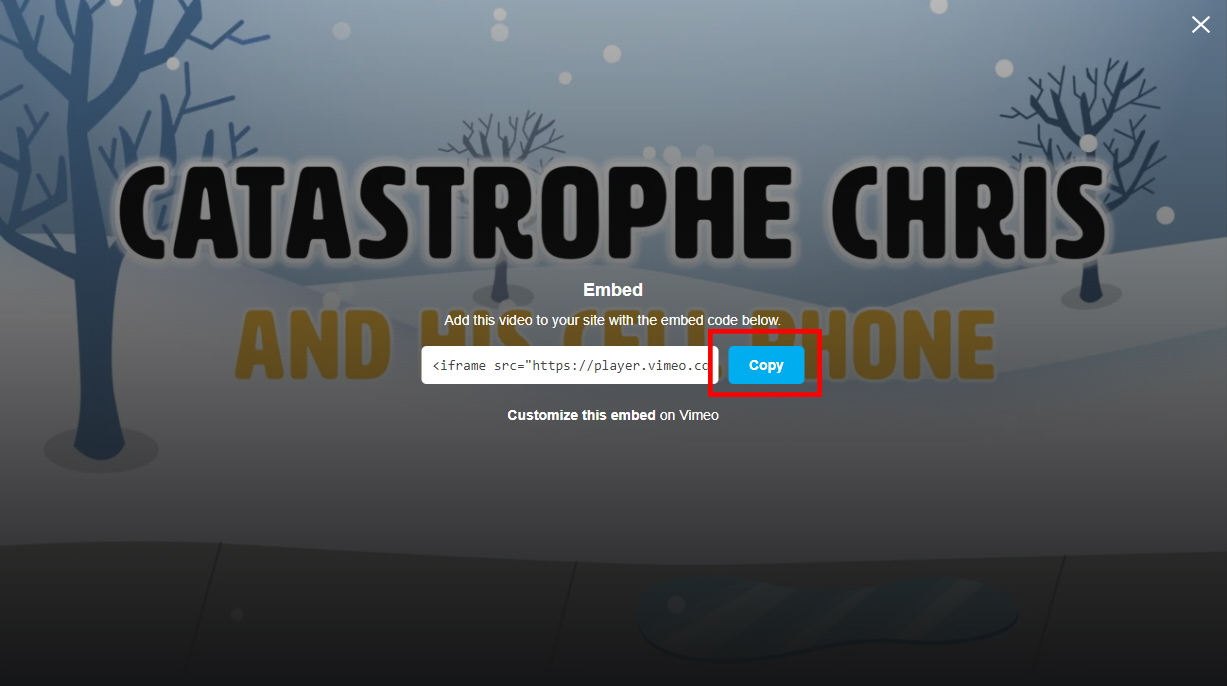
- Click the blue “Copy” box to capture the embed code (see above).
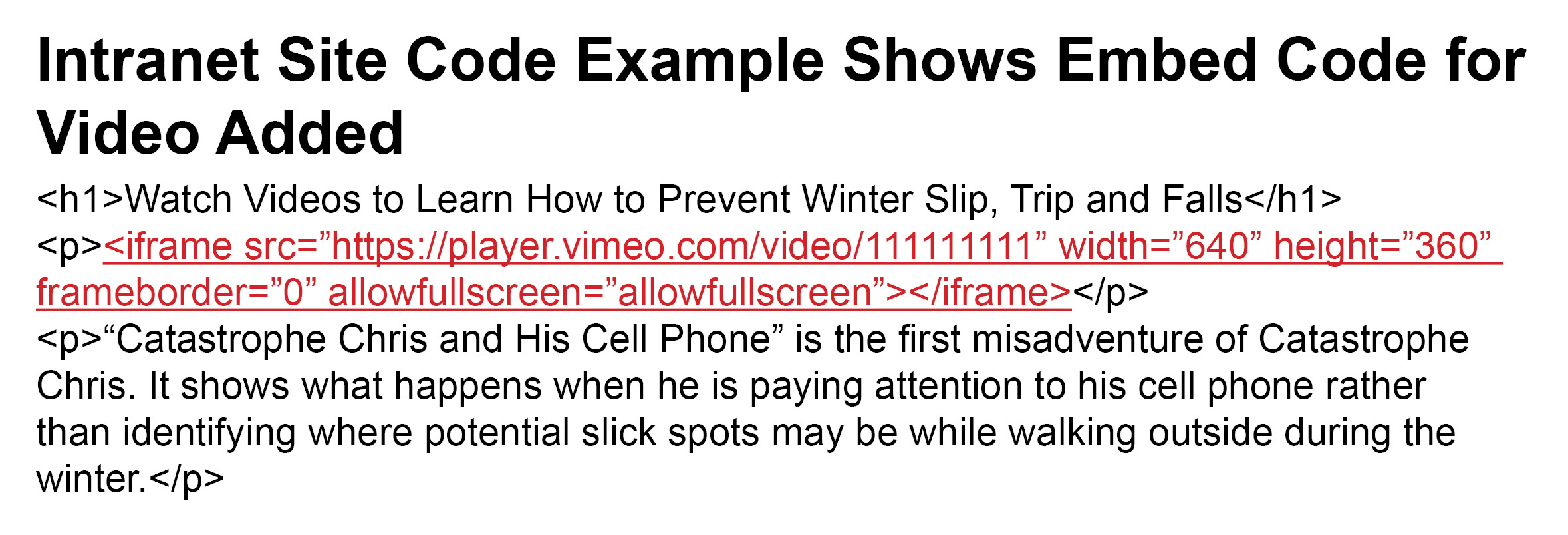
- Paste the embed code into the code of the intranet page where you want the video to appear (see above). The embed code looks something like this: <iframe src=”https://player.vimeo.com/video/111111111” width=”640” height=”360” frameborder=”0” allowfullscreen></iframe>
This allows you to provide a link to the animated videos to employees that takes them to view the animated videos online. You could post the links on the entity’s intranet site or distribute in e-mails, for example.
Suggestion: For the most impact, hyperlink a screen shot image of the video’s title screen to increase the visual appeal.
- Follow steps 1 through 3 above for capturing the embed code.
- Paste the embed code into a text file.
- Delete extraneous text as shown here: <iframe src=”https://player.vimeo.com/video/111111111” width=”640” height=”360” frameborder=”0” allowfullscreen></iframe>
- The remaining text is the URL (link) for the video at the MCIT online player. Use the link to connect employees to the video.
Learn More About the Workplace Injury Hotline
MCIT’s workplace injury hotline offers an efficient way for employees who are injured on the job to connect with professional medical advice. The service is provided at no cost to all MCIT member organizations.
The Workplace Injury Hotline page details how the service works and when members should use it. The page also includes frequently asked questions about the workplace injury hotline.
Topics